Editing video should feel creative, not like waiting for a toaster that refuses to toast. If your clips take forever to load, your timeline stutters, or your laptop starts acting dramatic, storage might be the hidden troublemaker. The good news is you don’t need a studio-sized budget to make things better. A few smart upgrades can help you edit faster, stay organized, and spend more time making videos instead of watching progress bars crawl across the screen.
Why speed matters
When you edit video, your computer has to read big files again and again. If that storage is slow, everything feels sticky. Clips hesitate. Previews stutter. Even dragging files around can feel like moving furniture through mud.
The frustrating part is that a fast processor won’t rescue you here. No matter how strong the CPU or GPU, the system stalls when data can’t be processed faster than the drive delivers it. That bottleneck is exactly why Lexar recommends fast storage for video editing, with NVMe SSDs handling real-time playback and multi-layer timelines that hard drives simply choke on.
You don’t have to be a professional filmmaker to notice the difference. Even if you’re trimming vacation clips or making short videos for social media, speed matters. A smoother setup helps you stay focused and less frustrated. Think of it like cooking in a clean kitchen. You still make the same meal, but the whole process feels a lot easier.
Spot the slowdown
Sometimes people blame their editing app first, but storage problems often wear the same disguise. If your footage imports slowly, that’s a clue. If your preview window freezes when you hit play, that’s another one. If your timeline feels jumpy, your storage may be struggling to keep up.
Long export times can also be part of the story, though export speed depends on more than one thing. Still, if every step feels sluggish, your files may not be moving fast enough from drive to computer and back again.
Another easy sign is how your device behaves with larger files. Maybe short phone clips seem fine, but 4K footage turns your laptop into a sleepy turtle. That gap matters.
The trick is to notice patterns. If delays happen most when opening, scrubbing, importing, or previewing footage, storage deserves a hard look. Your computer may not be broken. It may just be waiting on a slower drive.
Choose the right drive
Not all storage works the same way, and the names can sound more confusing than they need to. A basic hard drive usually gives you lots of space for less money, but it’s often slower. That can be okay for backup, but not always ideal for active editing.
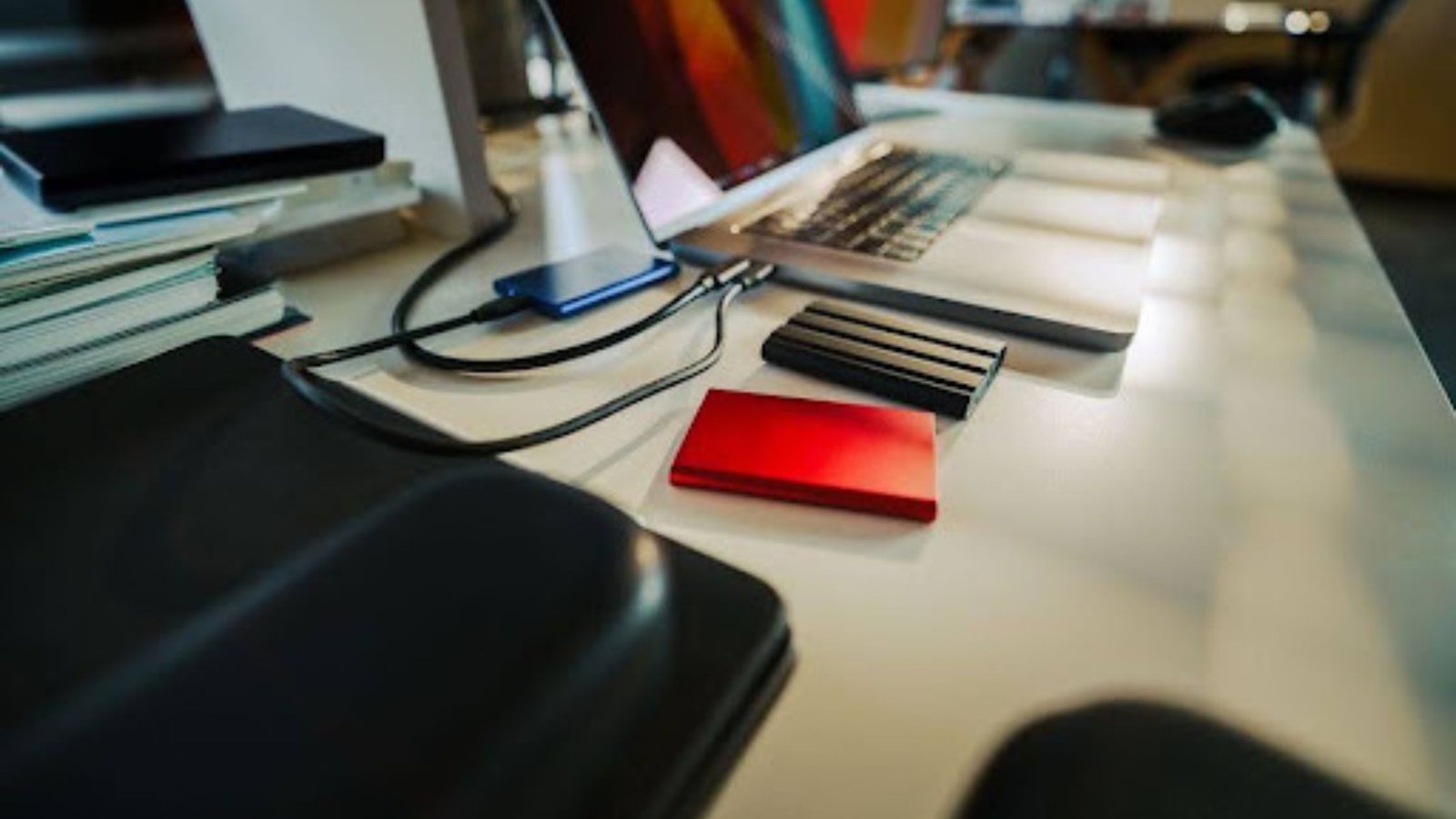
An SSD, or solid-state drive, is usually the better pick for editing work. It’s faster, quieter, and less likely to feel sluggish when you’re working with large video files. If you edit often, an SSD is usually the upgrade you’ll notice most.
Memory cards matter too, especially if you film on a camera, drone, or action cam. A slow card can slow down recording and file transfers before you even start editing.
For beginners, a simple setup works well: keep footage on a reliable fast drive and use older, slower drives for backup. You don’t need the fanciest gear on earth. You just need storage that doesn’t tap out halfway through your creative process.
Build a smoother setup
Better gear helps, but workflow habits matter too. One of the easiest improvements is keeping your active project files and your archived footage separate. When everything lives in one giant messy folder, finding clips becomes a treasure hunt without the treasure.
Try making one folder for each project. Inside it, use simple subfolders like raw footage, audio, graphics, and exports. Future-you will be very grateful. Present-you might even feel a little smug.
It also helps to leave free space on your drive. Stuffing a drive to the brim can hurt performance. Give it breathing room so your computer isn’t trying to sprint in a packed closet.
Another smart move is transferring footage before you start editing instead of cutting directly from whatever random card or device you used to film. That tiny shortcut can create big delays later. A neat setup won’t make you a better storyteller overnight, but it can remove a lot of friction.
Match gear to projects
Your storage needs depend on what you actually make. If you mostly edit short phone videos for friends, school, or social posts, you probably don’t need a giant, expensive setup. A solid SSD with enough room for current projects may be plenty.
If you make longer YouTube videos, record podcasts with video, or keep lots of clips from different shoots, extra space becomes more important. You’ll want something fast enough for active editing and roomy enough that you’re not deleting files every week.
Travel videos and 4K footage can push things further. Those files are bigger, and big files love causing drama. In that case, faster storage helps more, especially if you use lots of clips, music, and effects in one timeline.
Family video editors sit somewhere in the middle. You may not edit every day, but you probably care about keeping memories safe. That means a good working drive plus a separate backup is often the sweet spot.
Spend smarter, not bigger
You don’t need to buy everything at once. The smartest upgrade is usually the one that fixes your biggest headache first. If editing feels slow every single day, a faster main drive is often a better investment than buying more accessories you barely use.
If you’re constantly running out of room, then extra storage space may matter more than chasing top speed. If your files are scattered everywhere, better organization might help before you spend a dime.
A practical setup for many people looks like this:
– one fast drive for current editing
– one larger drive for backup
– clear folders for each project
– regular file cleanup after exports are finished
That’s not flashy, but it works. And working is the whole point.
Video editing will always ask something from your device, but it shouldn’t feel harder than the creative part. A few simple storage upgrades can save time, reduce stress, and make the whole process feel less like wrestling a greased octopus. When your setup supports your ideas, you get to focus on making better videos instead of fighting your tools.